
Unique Meme Sounds for Donate Alerts
In the hyper-competitive world of live streaming on platforms like Twitch, YouTube, and Kick, standing out is no longer just about gameplay or a high-quality camera. It’s about the experience you provide to your community. One of the most overlooked yet powerful tools for engagement is the “Alert Box.” If you are still using the default “zings” and “bloops” that come with Streamlabs or OBS, you are missing out on a massive branding opportunity.
In this guide, I’ll show you how to leverage Unique Meme Sounds for Donate Alerts to transform your stream into an interactive playground that encourages viewers to support you just to hear their favorite sounds live.
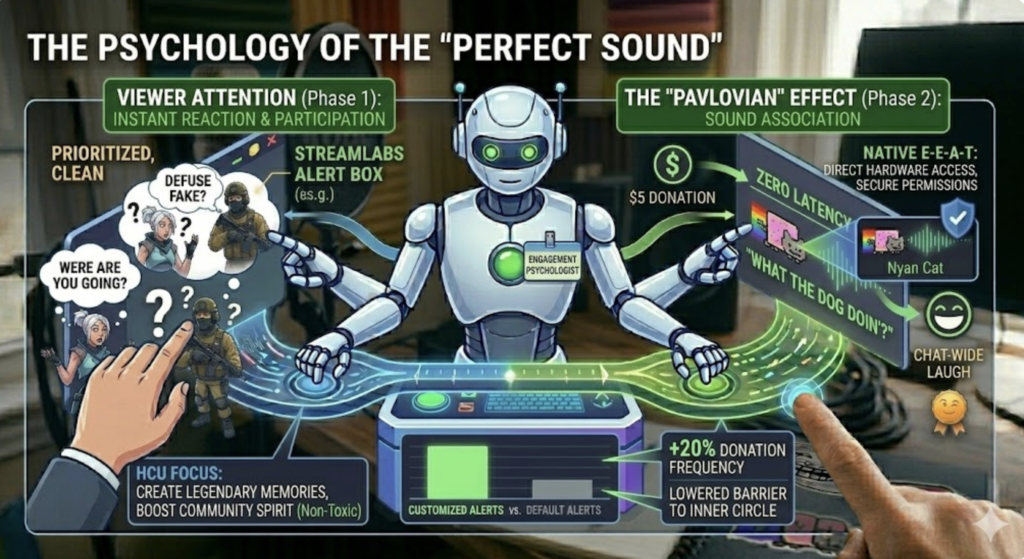
1. The Psychology of the “Perfect Sound”
Why do viewers donate? Sometimes it’s to support the creator, but often, it’s to participate in the show. When a viewer triggers an alert, they are buying a moment of your attention and the attention of the entire chat.
By using Unique Meme Sounds for Donate Alerts, you create a “Pavlovian” effect. If a specific sound always plays when someone drops a $5 donation, your community will begin to associate that sound with a positive, shared experience. For example, using a “What the dog doin’?” clip for small donations can turn a boring notification into a chat-wide laugh.
According to streaming experts at StreamElements, customized alerts can increase donation frequency by up to 20% because they lower the barrier between the viewer and the broadcast’s “inner circle.”
2. Why Choose Meme Sounds for Your Alerts?
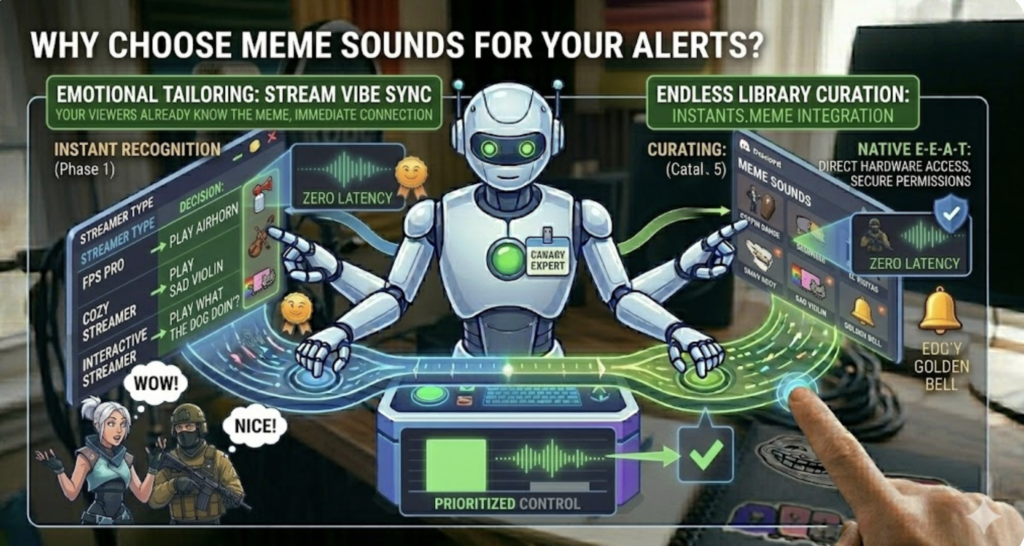
The internet is built on memes. They are the universal language of gaming culture. Using meme sounds for your alerts provides several key benefits:
Instant Recognition: Your viewers likely already know the meme. This creates an immediate connection.
Emotional Variety: You can tailor sounds to the “vibe” of your stream. Are you a high-energy FPS pro? Use “Airhorn” sounds. Are you a cozy variety streamer? Use “Sad Violin” or “Cute Cat” sounds.
Endless Resources: Platforms like Instants.Meme provide a nearly infinite library of pre-trimmed, high-quality audio clips.
3. Top Trending Meme Sounds for Each Donate Level
To maximize revenue, you should categorize your Unique Meme Sounds for Donate Alerts based on the amount donated. This encourages “tier-climbing,” where viewers donate slightly more to hear a “premium” sound.
Tier 1: Small Donates ($1 – $5) – Quick & Punchy
For small amounts, keep the sounds short (under 3 seconds) so they don’t disrupt the flow of the game.
Sounds: “Nice!”, “Wow!”, or the classic “Bruh” sound effect.
The Psychological Trick: Use the Apple Pay Sound to make it feel like a real-world transaction is happening live.
Tier 2: Medium Donates ($10 – $50) – The “Vibe” Shifters
Medium donations should feel like an event. These sounds can be 5–7 seconds long.
Sounds: “Coffin Dance” or “Emotional Damage.”
The “Clutch” Favorite: One of the most popular sounds for medium-tier “fail” moments is the Where are you goingg Soundboard. It’s perfect for when a viewer catches you making a mistake or trying to retreat from a fight.
Tier 3: Big Donates ($100+) – The Game Changers
These should be loud, long (up to 15 seconds), and visually accompanied by a big on-screen animation.
Sounds: “John Cena Intro,” “Inception Horn,” or a full “Rickroll.”
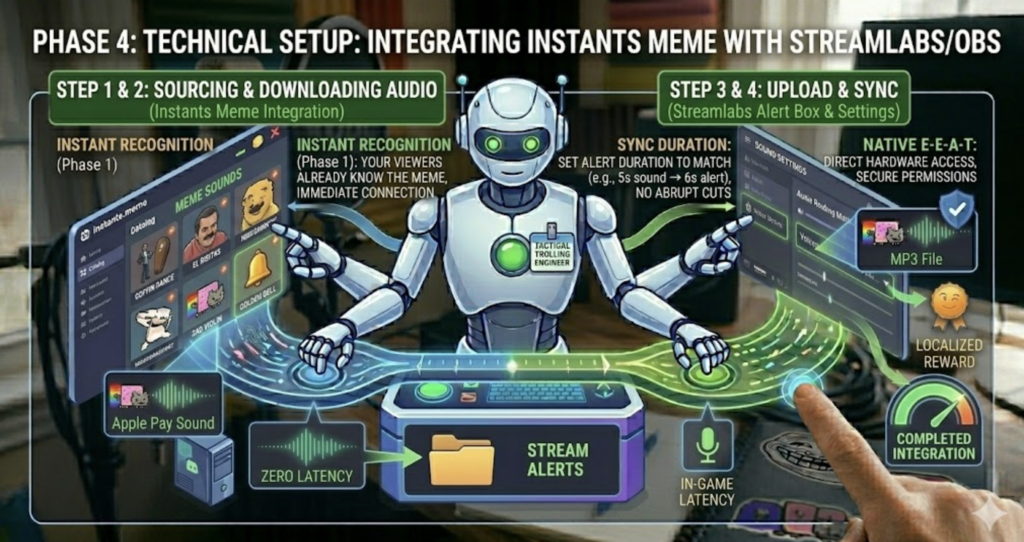
4. Technical Setup: Integrating Instants Meme with Streamlabs/OBS
To get these sounds onto your stream, follow this technical workflow:
Source the Audio: Head over to Instants.Meme and find your clips. Make sure they are trimmed accurately.
Download as MP3: Save them to a dedicated “Stream Alerts” folder on your PC.
Upload to Alert Box:
Open your Streamlabs Dashboard.
Go to Alert Box -> Donations.
Scroll down to Media and click Change Media.
Upload your MP3 file.
Sync the Duration: Ensure the “Alert Duration” in your settings matches the length of the audio file. If the sound is 5 seconds long, set the alert to 6 seconds so it doesn’t cut off abruptly.
5. Advanced Strategies: Avoiding the HCU “Low-Value” Trap
Google’s Helpful Content Update (HCU) prioritizes content that provides genuine value and safety. When setting up your alerts, keep these professional tips in mind:
Audio Normalization
Nothing makes a viewer mute a stream faster than a “Jump Scare” donate alert that is 200% louder than the game. Use the Volume Slider in your Alert Box settings to normalize all sounds. A good rule of thumb is that the alert should be roughly the same volume as your speaking voice.
Read the Room
If you are playing a horror game like Resident Evil or Phasmophobia, loud meme alerts can ruin the atmosphere. Use the “Pause Alerts” hotkey in OBS during intense cutscenes to maintain the immersion for your audience.
Interaction Pranks
Use sounds that interact with the environment. If you’re playing a game where people often “lose” their way, the Where are you goingg Soundboard is a top-tier choice because it directly comments on the gameplay, making the viewer feel like they are part of the commentary team.
6. Conclusion: Building Your Sonic Brand
Choosing Unique Meme Sounds for Donate Alerts is about more than just being funny; it’s about building a “Sonic Brand.” Think of it like the “Tudum” sound of Netflix or the “Level Up” sound in Mario. When people hear a specific clip from the Where are you goingg Soundboard on your channel, they should immediately think of you.
By sourcing your audio from high-quality platforms like Instants.Meme, normalizing your volumes, and tiering your rewards, you create a professional, engaging, and profitable streaming environment.