
How to Use Discord Soundboard Without Bots
In the ever-evolving landscape of digital communication, Discord has transformed from a simple gaming chat app into a central hub for communities. One of the most engaging features to emerge recently is the soundboard—a way to inject humor, reactions, and personality into voice chats. While many users initially turned to external bots, there is a growing demand for native solutions. In this comprehensive guide, I will show you How to Use Discord Soundboard Without Bots, ensuring your server remains secure, fast, and clutter-free.
1. The Shift: Why Move Away from Discord Bots?
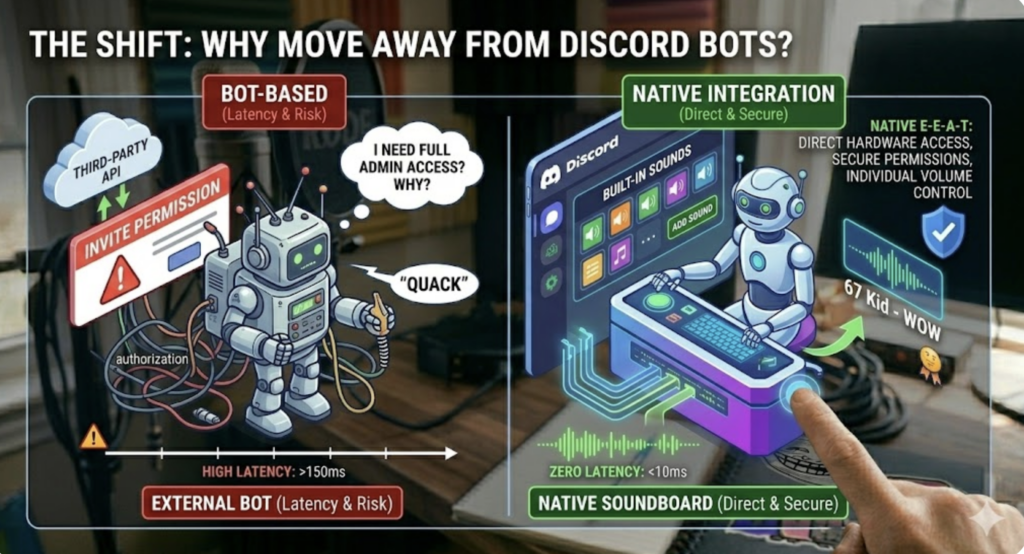
For years, bots were the only way to play audio in a channel. However, relying on third-party bots often comes with downsides: high latency, privacy concerns, and the requirement for server administrator permissions to “invite” the bot.
By learning How to Use Discord Soundboard Without Bots, you tap into Discord’s native hardware integration. This results in:
Zero Latency: Sounds play instantly for everyone in the call.
Individual Volume Control: Each participant can adjust how loud your sounds are for them personally.
Better Privacy: No need to give high-level permissions to unknown external scripts.
2. Method 1: Using Discord’s Built-in Soundboard
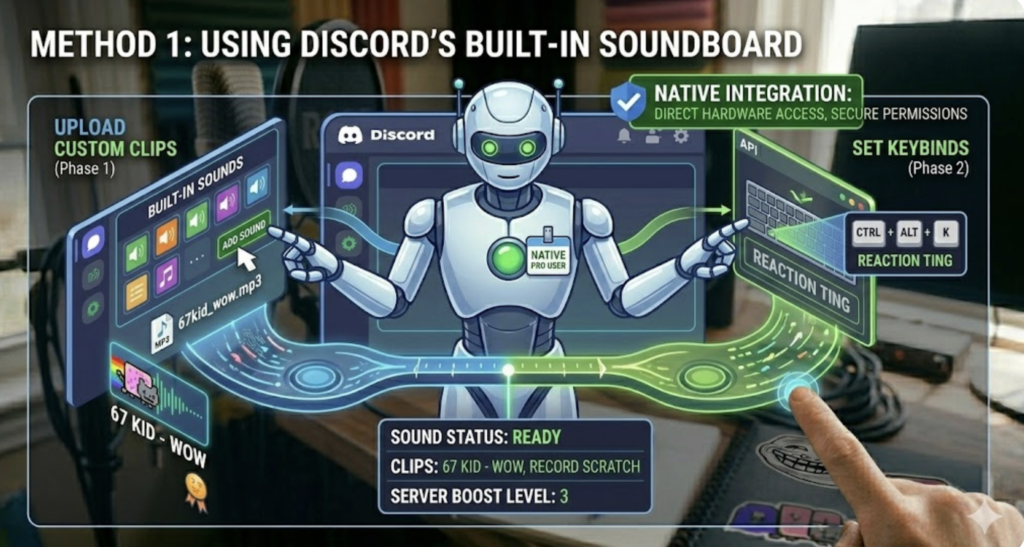
Discord has officially rolled out its own “Built-in Soundboard” feature. This is the most direct way to achieve our goal.
Step-by-Step Setup:
Join a Voice Channel: Look for the “Soundboard” icon (it looks like a small grid) near the bottom left of the call interface.
Browse and Play: Clicking this opens a panel with default sounds like “Quack” or “Airhorn.”
Upload Custom Clips: If you have the right permissions, click “Add Sound.” You can upload any MP3 or WAV file.
Assign Keybinds: To be a true pro, go to User Settings > Keybinds. You can assign a specific key on your keyboard to trigger a sound instantly without even having the Discord window focused.
Pro Tip: For high-quality audio clips that fit Discord’s 5-second limit, I highly recommend checking out the 67 Kid Soundboard. These short, punchy clips are perfect for quick reactions during a gaming session or a casual hang-out.
3. Method 2: The Virtual Audio Cable Strategy
If you want to play longer clips or use sounds directly from your browser (like a YouTube video or an online library) without uploading files to every single server, the “Virtual Audio Cable” method is the industry standard.
How it Works:
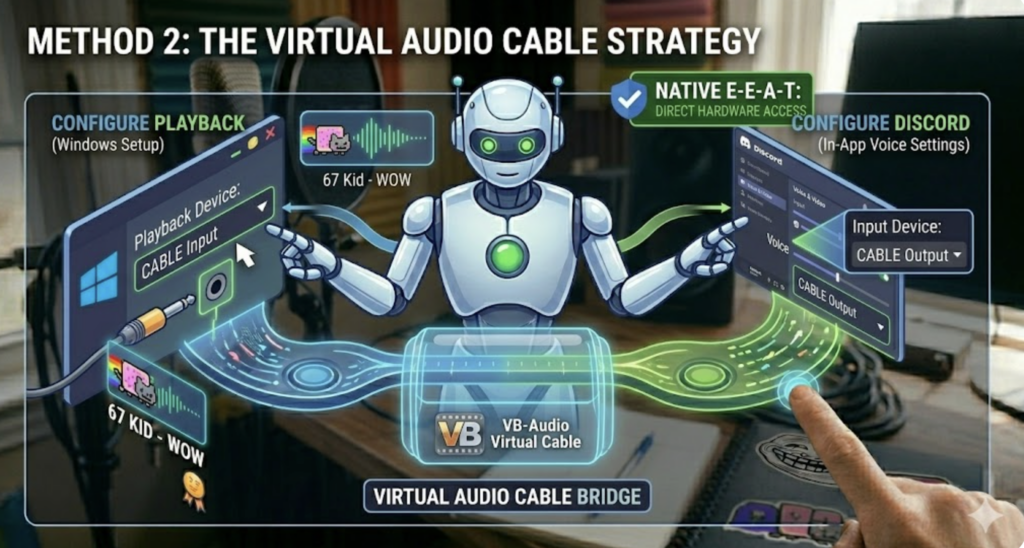
A Virtual Audio Cable acts as a “bridge” inside your PC. It takes the audio output from one application (like your web browser) and pipes it directly into Discord as if it were your microphone input.
The Setup Guide:
Download a Tool: Use a reputable tool like VB-Audio Virtual Cable.
Configure Playback: In your Windows Sound Settings, set the “Playback Device” to CABLE Input.
Configure Discord: In Discord, go to Settings > Voice & Video. Change your Input Device to CABLE Output.
Play Your Sound: Open the 67 Kid Soundboard on your browser and press play. Your friends in Discord will hear the audio as if you were speaking it into your mic!
4. Optimizing for the “Helpful Content Update” (HCU)
Google’s HCU algorithm rewards content that provides genuine technical value and a good user experience. To ensure your audio sounds professional and not “crunchy” or distorted, you must tweak your Discord settings.
Disable Noise Suppression (Krisp)
Discord uses a technology called Krisp to block background noise like dogs barking or fans whirring. However, Krisp often mistakes soundboard effects for “noise” and will cut them off.
Action: In Voice & Video settings, turn off Noise Suppression and Echo Cancellation when you plan to use your soundboard. This ensures the full fidelity of the sound reaches your friends.
Manage Your Volume
Nothing gets a user muted faster than a “loud” soundboard. Always normalize your files. If you’re sourcing from the 67 Kid Soundboard, the levels are already optimized, but if you’re making your own, keep them around -3dB to avoid digital clipping.
5. Troubleshooting Common Issues
Even when you know How to Use Discord Soundboard Without Bots, you might run into a few snags:
“I can hear the sound, but my friends can’t”: This usually means your Discord “Input Device” is still set to your physical microphone instead of the Virtual Cable.
“The audio is cutting in and out”: Check your Input Sensitivity. If it’s set to “Automatically determine,” the gate might not open for quieter sound effects. Set it to a manual threshold.
“I reached the server limit”: Discord servers have a limit on how many sounds can be uploaded based on their Server Boost level. If the server is full, the Virtual Cable method (Method 2) is your best friend.
Conclusion: Total Control Over Your Audio
Learning How to Use Discord Soundboard Without Bots empowers you to be more creative and interactive without the headache of managing bot commands. Whether you use the native built-in panel for quick reactions or a virtual cable for professional-grade sound routing, you are now equipped to elevate your voice chat experience.
The key to a great soundboard is the content. Explore various libraries, experiment with timing, and always keep things fun. Whether you are using the viral clips from the 67 Kid Soundboard or creating your own custom effects, you now have the technical foundation to share them flawlessly.